
Last Updated: October 28, 2026
Quick Summary
You can customize smartwatch notifications by first confirming your watch and phone are paired and that the companion app has notification access. Then choose only the apps you want on your wrist, usually five to eight, and adjust vibration, previews, and quiet hours for each.
- Confirm Bluetooth pairing and that the companion app can read notifications before changing anything else.
- Keep five to eight apps enabled, such as calls, texts, calendar, and health alerts.
- Turn off games, shopping apps, and most promotional alerts to cut down on noise.
- Test each change for a day and adjust the vibration strength if it feels too sharp or too easy to miss.
- If alerts stop arriving, check Bluetooth, phone permissions, and Do Not Disturb, then restart both devices.
Table of Contents
- Why Customizing Smartwatch Notifications Matters
- Before You Start: Check Compatibility and Permissions
- How to Manage App Notifications on Smartwatch
- Customize Notifications on Android Smartwatch
- Customize Notifications on Apple Watch
- Fixing Smartwatch Notifications That Stop Working
- Frequently Asked Questions
Last Updated: October 28, 2026
Why Customizing Smartwatch Notifications Matters
Smartwatch notifications can either help your day or quietly wear it down. Left at default settings, a watch may buzz for every app, every email, and every group chat.
Setting up your alerts takes only a few minutes, and it pays off every day after.
Good notification settings help you:
- Catch the messages that truly matter, like family calls or appointment reminders
- Silence apps that only create noise
- Save battery by cutting down on screen wake-ups
Think of this guide as a simple, five-step plan. Work through it once, and your watch will feel far more useful.
Before You Start: Check Compatibility and Permissions
Notifications only work if your watch and phone are linked correctly. So check that first.
Most smartwatches pair with a companion app on your phone. If you are still deciding which watch suits your phone and daily routine, you can compare options before you set anything up. Make sure:
- Your watch is paired and connected over Bluetooth
- The companion app is installed and open at least once
- Notification access is turned on for the app on your phone
If an app is missing from your list, it usually means the phone has not yet given the companion app permission to read notifications. Fix that step first, and the rest of the setup goes much smoother.
How to Manage App Notifications on Smartwatch
This is where most of the gains happen. Instead of accepting every alert, decide which apps deserve your wrist.
Choosing Which Apps Can Alert You
Open the notification or app settings in your watch's companion app. You will usually see a list of every installed app. Work through it with a simple rule: if you would not want to see it at dinner, turn it off.
A useful starting point:
- Keep on: phone calls, text messages, calendar reminders, health alerts
- Keep on, but limit: work email, social media, news
- Turn off: games, shopping apps, most promotional alerts
Keep this list short. Five to eight apps usually cover what most people need.
Setting Vibration and Alert Styles
Once you have chosen your apps, adjust how each one reaches you. A gentle tap works well for low-priority alerts, while a stronger pattern suits calls or reminders you cannot miss.
Many watches also let you set:
- Vibration strength, from light to strong
- Silent mode for specific apps
- Whether alerts show text previews or only an icon
Test each change for a day. If a buzz feels too sharp or too easy to miss, adjust it again.
Customize Notifications on Android Smartwatch
Android gives you more notification control than almost any other platform, but that control is split across two places: the watch's companion app and the phone's own notification settings. Most missed alerts happen because one of those two layers is blocking the app. Work through both.
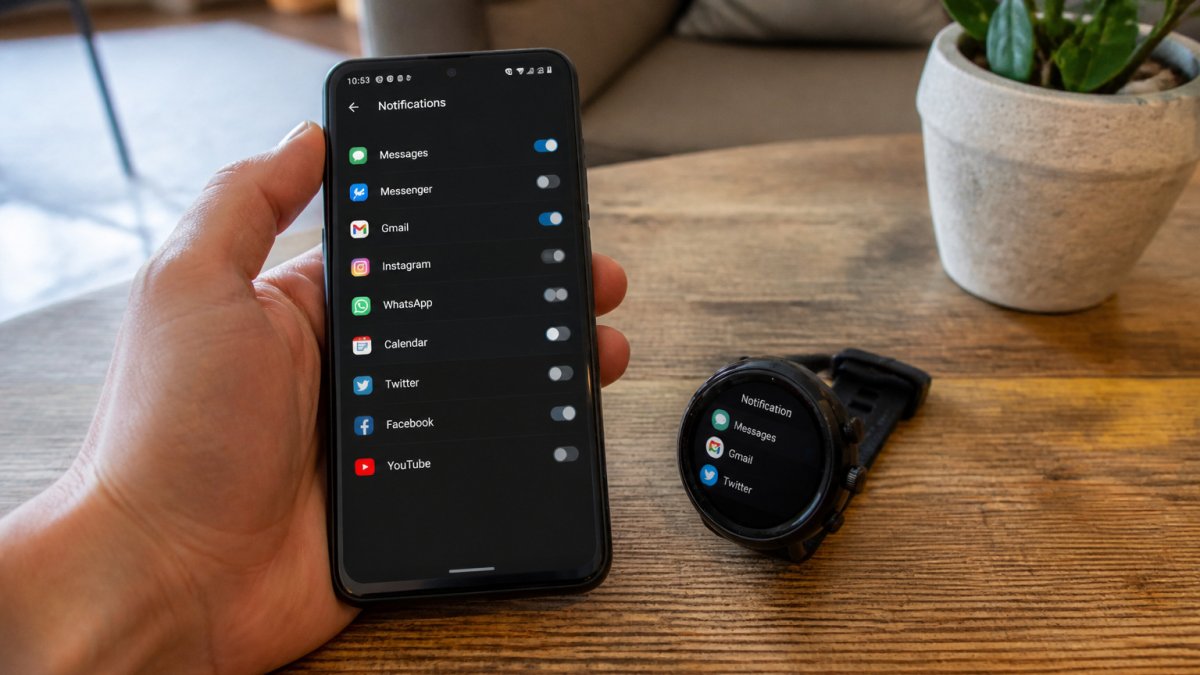
Step 1: Set the watch-side app list
Open your watch's companion app on the Android phone. The exact name depends on the brand, Samsung Galaxy Wearable, Wear OS, Fitbit, Garmin Connect, and similar apps all use slightly different labels, but the path is usually:
- Open the companion app and go to Notifications, Alerts, or App notifications.
- Find the list of installed apps.
- Toggle on only the apps you want on your wrist.
- For each enabled app, choose whether to show previews, vibration, or sound.
A common pattern is to keep calls, SMS, calendar, and one messaging app on, then turn off shopping, games, and promotional apps. Five to eight enabled apps is a practical ceiling for most people.
Step 2: Check the phone-side permission layer
On Android, the companion app needs notification access before it can forward anything. Go to Settings > Apps > [companion app] > Notifications and confirm notifications are allowed. Then check Settings > Apps > Special app access > Notification access and make sure the companion app is toggled on. If that toggle is off, the watch will pair and sync but stay silent.
Step 3: Use Android's per-app channels
Android breaks each app's notifications into channels, for example, a messaging app may have separate channels for direct messages, group messages, and reactions. In Settings > Apps > [app] > Notifications, you can silence one channel without killing the whole app. This is the cleanest way to stop group-chat noise while keeping direct messages on your wrist.
Step 4: Set quiet hours and Do Not Disturb
Most Android watches honor the phone's Do Not Disturb schedule. Set it under Settings > Sound & vibration > Do Not Disturb > Schedules. On Samsung and Wear OS watches, you can also enable a watch-side bedtime or theater mode so the screen stays dark even when the phone is active.
Step 5: Confirm with a test alert
Send yourself a message from another device or use the app's built-in test notification. If the watch buzzes, the chain is working. If not, revisit Step 2, notification access is the most common culprit on Android.
Android splits notification control across the watch app and the phone, so these are the key settings to check at each layer.
| Step | What to do | Time or frequency |
|---|---|---|
| Step 1: Set watch-side app list | Toggle on only the apps you want on your wrist | Five to eight enabled apps |
| Step 2: Phone-side permission | Confirm notification access for the companion app | Check during setup |
| Step 3: Per-app channels | Silence one channel, such as group chats | Per app |
| Step 4: Quiet hours | Set Do Not Disturb schedules | Scheduled |
| Step 5: Test alert | Send a test message and confirm the watch buzzes | Once after setup |
Customize Notifications on Apple Watch
On Apple Watch, nearly all notification control lives in the Watch app on the paired iPhone, not on the watch itself. The setup has three layers: iPhone permissions, the Watch app's notification list, and Focus modes. Handle them in that order.
Step 1: Confirm iPhone notification permissions
Before touching the Watch app, make sure the apps you care about can notify the iPhone at all. Go to Settings > Notifications > [app] and confirm Allow Notifications is on. If an app is silenced on the iPhone, it will not reach the watch no matter what the Watch app says.
Step 2: Choose Mirror or Custom
Open the Watch app on the iPhone and tap Notifications. At the top you will see Mirror my iPhone, which copies your iPhone alert settings to the watch. Below it is a list of individual apps. For each app you can choose:
- Mirror my iPhone, the watch follows whatever the iPhone does
- Custom, you set watch-specific behavior, including whether to show alerts, sound, and haptics
A practical approach: mirror calls, messages, and calendar, then set social and news apps to Custom with sound off so they tap quietly without interrupting.
Step 3: Tune haptics and previews
Inside each app's Custom settings you can pick a haptic pattern, from a light tap to a prominent buzz, and choose whether the watch shows full text, a shortened preview, or just an icon. For private apps like banking or health, set previews to off so the content stays on the iPhone.
Step 4: Use Focus modes to filter by context
Focus modes (Work, Sleep, Personal, and any custom ones you create) sync between iPhone and Apple Watch. In Settings > Focus, choose a mode, then under Allowed Notifications decide which people and apps can break through. Sleep Focus, for example, can silence everything except favorite contacts and alarms. The watch will respect the same rules automatically.
Step 5: Test and adjust
Ask someone to message you, or use a reminder set for one minute out. If the watch taps, the chain works. If it stays silent, check the iPhone's notification settings first, then the Watch app's per-app choice, then Focus. Those three checks resolve most Apple Watch notification issues.
Fixing Smartwatch Notifications That Stop Working
If alerts stop coming through, work through these checks in order:
- Check Bluetooth. Make sure the watch and phone are still connected.
- Check phone permissions. Confirm the companion app can read notifications.
- Check Do Not Disturb. A focus mode on either device can hide everything.
If the problem continues, unpair the watch and set it up again. It takes a few minutes but often solves stubborn issues.
Frequently Asked Questions
How do I turn off notifications on a smartwatch?
Open the companion app on your phone, go to the notifications section, and toggle off the apps you no longer want alerting your wrist. On many watches you can also open the watch's own settings, choose Notifications, and disable alerts there. Changes usually take effect right away, and you can switch an app back on at any time. If you want fewer interruptions without losing everything, try turning off alerts for social and shopping apps first while keeping calls, messages, and calendar reminders active.
Can I customize notification settings separately for each app?
Yes. Most smartwatches let you set notifications app by app, so you can allow messages from one app while blocking another. In the companion app, select a specific app and choose whether it sends alerts, shows full content, or stays silent. Some watches also let you set different vibration patterns per app, which helps you tell a message from a reminder without looking at the screen. Review the list once a month, since newly installed apps often turn notifications on by default.
Why are notifications not showing up on my smartwatch?
The most common causes are Bluetooth disconnection, a notification permission turned off on the phone, Do Not Disturb or a focus mode active on either device, and the app being excluded from watch alerts. Check that the watch and phone are still paired, confirm the app can send notifications in your phone's settings, and restart both devices. If the problem continues, unpair and pair the watch again through the companion app.
How do I stop my smartwatch from vibrating for every notification?
Lower the number of alerts first by switching off apps that send frequent low-priority updates. Then look for a vibration or haptic setting in the notifications menu and reduce its strength or turn it off for selected apps. Many watches also offer a silent mode or a scheduled quiet time, which keeps notifications visible on the screen without buzzing your wrist. Keep vibration on for calls and important messages so you do not miss them.
Customized notifications turn a busy wrist into a helpful companion. Start with the five steps above, then fine-tune as you learn what matters most to you. Explore more tools and ideas at HONORABLE VETERANS SOLUTIONS to build a daily routine that feels calm, practical, and your own.
