
Last Updated: October 28, 2026
Quick Summary
Smartwatch setup starts with a compatibility check, then a full charge before you begin. Next, pair the watch with your phone over Bluetooth, install the companion app, and allow only the permissions you need. Expect the first few days to drain the battery faster than normal.
- Confirm your phone's operating system is on the watch's official compatibility list before opening the box.
- Charge the watch fully before setup, because setup steps can drain the battery.
- Install the companion app from your phone's official app store and update the watch firmware when prompted.
- Allow only the permissions the app needs, and review them again after the first week.
- Judge battery life after a full week of normal use, not during the first two or three days.
Table of Contents
- Before You Start: Check Compatibility and Charge the Watch
- How to Connect a Smartwatch to Your Phone
- Smartwatch Companion App Setup, Step by Step
- Setting the Time, Preferences, and Privacy Permissions
- How to Customize Smartwatch Notifications
- Smartwatch Battery-Saving Tips and Troubleshooting Your First Week
- Frequently Asked Questions
Before You Start: Check Compatibility and Charge the Watch
Smartwatch setup goes much better when you check compatibility first. If you are still deciding whether a watch suits your routine, see how to choose a smartwatch that fits daily life. Take five minutes to confirm your phone works with the watch before you open the box.
Start by finding the make and model of your phone. Then check the watch packaging or product page for the phone systems it supports. Some watches work with either Android or iPhone, but not always both, and some features need a specific operating system version.
A Compatibility Checklist Before You Set Up
Run through this list before you begin:
- Your phone runs a current operating system that the watch supports
- Bluetooth is available on your phone
- You can download the companion app from your phone's app store
- You have a free storage space of at least a few hundred megabytes
- You know the email or account you want to link to the watch
- You have a Wi-Fi or mobile data connection for the app download
A common mistake is assuming an older phone will work just because it turns on. Check the official compatibility list first. If your phone is outside that list, some features may fail or the watch may not pair at all.
Charging the Watch for the First Time
Charge the watch fully before setup. Setup steps can drain the battery. Place the watch on its charging cable or dock until the screen shows a full battery icon.
How to Connect a Smartwatch to Your Phone
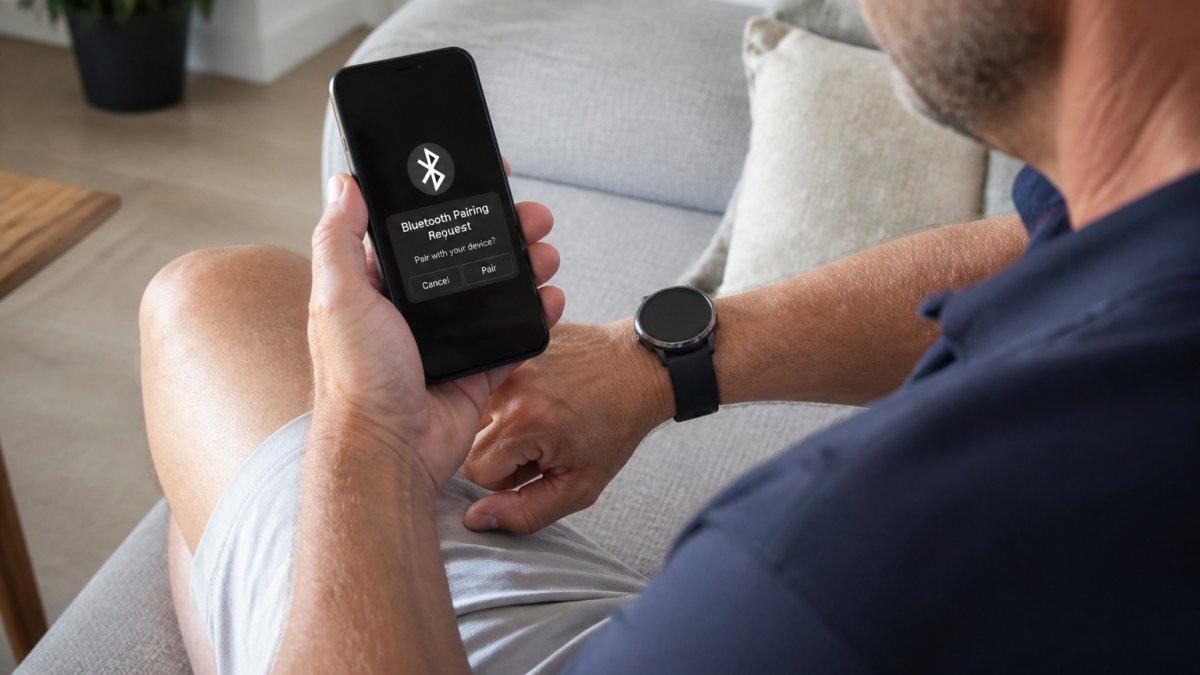
Pairing is the step in smartwatch setup that links the watch and phone so they can share data.
Connecting to an Android Phone
Turn on Bluetooth on your Android phone. Then open the companion app and follow the prompts to search for nearby devices. When your watch appears in the list, tap its name and confirm the pairing code shown on both screens.
If the watch does not appear, restart both devices and try again. Keep the phone close to the watch during pairing.
Connecting to an iPhone
Go to your iPhone's settings and make sure Bluetooth is on. Open the companion app, which typically needs to be installed from the App Store. Follow the on-screen steps to pair the watch, and accept any permission requests the app asks for.
Some iPhone models require the watch to be unpaired and reset before it can connect to a new phone. Check the manufacturer's instructions if pairing fails the first time.
Smartwatch Companion App Setup, Step by Step
- Download the app from the official app store for your phone.
- Create an account or sign in with an existing one.
- Allow Bluetooth, notification, and location access when asked.
- Follow the prompts to pair the watch.
- Update the watch firmware when the app offers it.
- Set your height, weight, and other profile details if the app asks.
Install the latest firmware update.
Setting the Time, Preferences, and Privacy Permissions
Most watches set the time automatically once they sync with your phone. Check the watch face to confirm the correct time zone, especially if you travel or live near a time-zone border. If the time is wrong, open the companion app and look for a time or date setting; on many models the watch inherits the phone's clock, so fix the phone first.
Next, review your preferences. Choose your units (miles or kilometers), set display brightness, and pick a left- or right-wrist orientation if your model supports it. These are cosmetic, but they affect daily comfort.
Which Permissions the App Actually Needs
Permission requests can be confusing. Check the watch and app instructions for details:
Reviewing Data-Sharing and Account Security
Only allow the permissions you need, and revisit them after the first week. You can always change them later in the app's settings menu or your phone's system settings.
How to Customize Smartwatch Notifications
Many watches also let you set quiet hours. Schedule them for sleep or work time so the watch stays silent when you need focus.
Smartwatch Battery-Saving Tips and Troubleshooting Your First Week
Battery life is the most common complaint during the first week, and most early problems fall into a few recognizable patterns. Work through the symptom that matches yours before contacting support.
Battery-Saving Tips That Actually Move the Needle
-
Lower screen brightness and shorten the screen timeout.
-
Keep the firmware updated.
Troubleshooting by Symptom
The watch does not appear in Bluetooth or the app's device list. Confirm Bluetooth is on and the watch is in pairing mode (many watches require you to open a pairing screen on the watch itself). Move the phone within a few feet of the watch, restart both devices, and try again. If the watch was previously paired to another phone, unpair it there first, a watch still bonded to an old phone often will not show up on a new one.
Pairing starts but fails or times out. Check that the companion app is the correct one for your watch model; similarly named apps exist. Make sure the app has Bluetooth and location permission on your phone. On Android, temporarily disable battery optimization for the app during pairing. On iPhone, accept the pairing code on both screens quickly, the code expires.
The watch pairs but notifications do not arrive. Check three things in order: the app has notification permission on your phone, the specific apps you want are toggled on inside the companion app, and the phone is not in a Do Not Disturb or Focus mode that blocks the app. On Android, confirm "notification access" is enabled for the companion app in system settings.
Data syncs late or only when the app is open. This is usually a background-refresh issue. Allow the app to run in the background, and on Android exclude it from battery optimization. Keep the phone and watch within Bluetooth range; sync pauses when they separate.
The battery drains unusually fast. Look for a pending firmware update, a watch face with live animation, or an app stuck syncing in the background. Restart the watch, then check the app's battery or usage report if it has one. If drain continues for several days after a full charge, contact the manufacturer's support with your phone model and watch model.
If a problem continues, contact the manufacturer's support team with your phone model, watch model, and a short description of the symptom.
The table below sums up the most common first-week problems, their likely causes, and the fixes described in this section.
| Problem | Likely cause | Fix |
|---|---|---|
| Watch does not appear in Bluetooth or app list | Watch not in pairing mode or still bonded to an old phone | Enable pairing mode, unpair from the old phone, restart both devices |
| Pairing fails or times out | Wrong companion app or expired pairing code | Install the correct app, accept the code quickly on both screens |
| Notifications do not arrive | Notification access off or Do Not Disturb active | Enable notification permission and per-app toggles |
| Data syncs late | Background refresh blocked | Allow background running and exclude the app from battery optimization |
| Battery drains fast | Pending update, live watch face, or stuck sync | Update firmware, restart the watch, check the app's usage report |
Frequently Asked Questions
How do I connect a smart watch to my phone?
Turn on the watch and bring it close to your phone, with Bluetooth enabled on the phone. Install the manufacturer's companion app, open it, and choose to add a new device. Select your watch from the list of nearby devices, confirm the pairing code shown on both screens, and then follow the on-screen prompts. Keep the phone and watch close together during pairing, and keep the phone unlocked until the setup finishes. If the watch does not appear, check the manufacturer's instructions.
What should I do first when setting up a smartwatch?
Start by charging the watch fully, since setup can drain the battery. Check that your phone runs a supported operating system and that the companion app is available for it. Next, turn the watch on, choose your language, and begin pairing with your phone. Once connected, set the time and date, then review notification and privacy settings before you start wearing it every day.
How can I make my smartwatch battery last longer?
Lower the screen brightness, shorten the screen timeout, and turn off always-on display if you do not need it. Reduce how many apps send notifications, and turn off features you do not use, such as continuous heart-rate tracking or background GPS. Disable wrist-raise activation if it wakes the screen too often. Keep software updated, because manufacturers often fix battery drain in updates. Checking the battery usage screen in the companion app shows which features use the most power.
